
The #1 Mistake on Local Business Websites (and the 10-Minute Fix)
Most local websites either have no Google Map at all, or they embed a map of their street address instead of their actual Google Business Profile. One shows Google (and customers) a dot on a street. The other shows them your business: name, stars, reviews. Here's how to check yours and fix it.
Just a pin and an address. No business name, no stars, no reviews. Clicks land on a plain address.
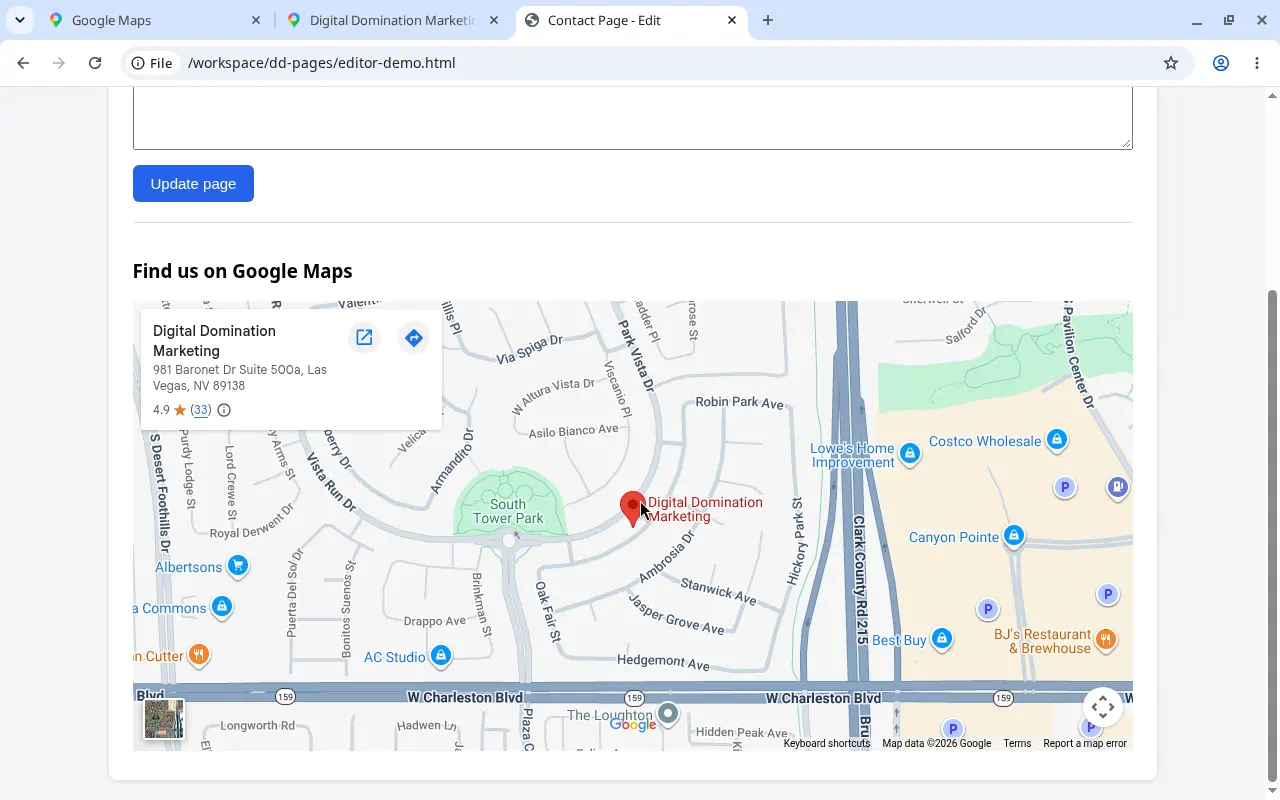
Business name, rating and reviews. Clicks land on your real Google Business Profile.
Two ways local websites blow it
We audit local business websites every week. This is the most common problem we find, and one of the easiest to fix.
Mistake #1: No map at all
Your website never shows where you are on Google Maps. Customers have to go hunt for you, and you pass up an easy way to tie your site to your Business Profile.
Mistake #2: A map of the address, not the business
The sneaky one. Someone (often a web designer) typed your street address into Google Maps and embedded that. It looks fine at a glance, but it points to a location, not to your business listing.
The rule: your website's map should point to your Google Business Profile (the listing with your name, reviews and photos), not to the street address it sits on.
What the right map does for you
Google ranks local results on three things: relevance, distance and prominence. Your job is to make it dead simple for Google to connect your website and your Business Profile, so the strength of one backs up the other.
Entity association
An embed of your listing carries your business's unique Google Maps ID. That's an unambiguous link between this website and that Business Profile. An address embed only says "something is at 123 Main St," which could be a dozen businesses.
Relevance & prominence
Consistent signals help Google trust that your website, your reviews and your listing are all one business. Your site's content and authority then support your map listing instead of floating around unconnected.
Customers see your reviews
When a visitor taps the map, they land on your real Business Profile: your star rating, reviews, photos, hours and a Call button. With an address embed they land on a generic pin with none of that.
Straight talk: Google has never said "embed a map and you'll rank." A map alone won't put you in the top 3. But it's a 10-minute fix that removes doubt about who you are, and in the map pack, the businesses that win usually get every small signal right.
Does your map point to an address or your business?
Three quick tests. The first one takes five seconds.
Look at the card in the corner of the map
Open the page on your site with the map. Google's embedded maps show a small white info card in the top-left.
Click "View larger map"
That link opens Google Maps in a new tab. Where does it take you?
Check the code (the src of the iframe)
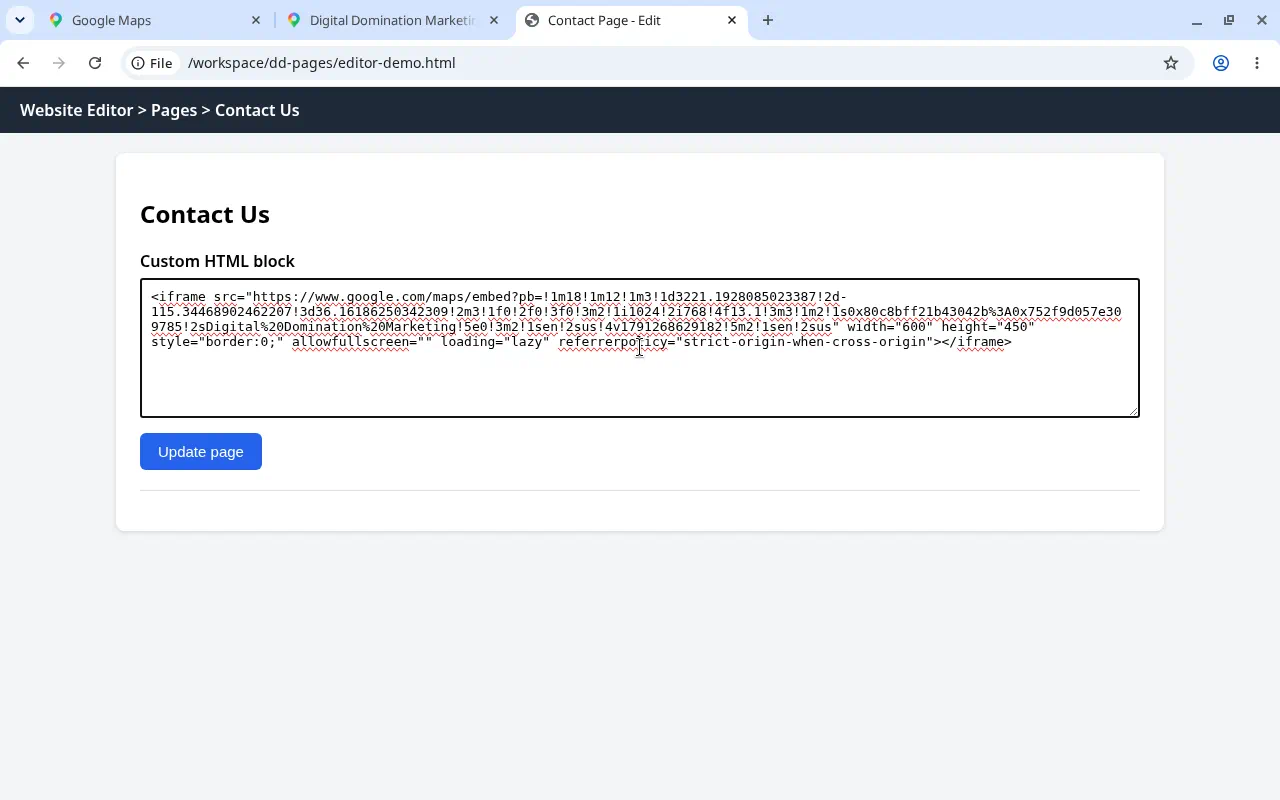
Right-click the map area → Inspect (or look at the HTML in your website editor) and find the <iframe src="...">. What follows !2s in a Google embed URL is the name of what's being shown.
✗ Points to an address
https://www.google.com/maps/embed?pb=!1m18!1m12!...!1s0x80c8c3...%3A0x1a2b...!2s123%20Main%20St%2C%20Las%20Vegas%2C%20NV%2089101!5e0!3m2!1sen!2sus...
https://maps.google.com/maps?q=123+Main+St+Las+Vegas+NV&output=embed
✓ Points to your business
https://www.google.com/maps/embed?pb=!1m18!1m12!...!1s0x80c8bff21b43042b%3A0x752f9d057e309785!2sAcme%20Plumbing%20Las%20Vegas!5e0!3m2!1sen!2sus...
https://www.google.com/maps/embed/v1/place?key=YOUR_KEY&q=place_id:ChIJ...
Note: both address and business embeds can contain a 0x…:0x… ID. Read what comes after !2s: it should be your exact business name as it appears on Google, not a street address.
Free Map Embed Checker
Paste your map's iframe code (or just its src URL) below. It runs in your browser; nothing is sent anywhere.
Quick heuristic check, not a guarantee. Always confirm with tests 1 and 2 above.
Get the right embed in 10 minutes
No API key, no developer needed. Use a desktop or laptop browser: the "Embed a map" option isn't in the Google Maps phone app.
Go to google.com/maps on a computer
Sign-in isn't required to grab embed code. Using a private/incognito window avoids personalized results confusing things.
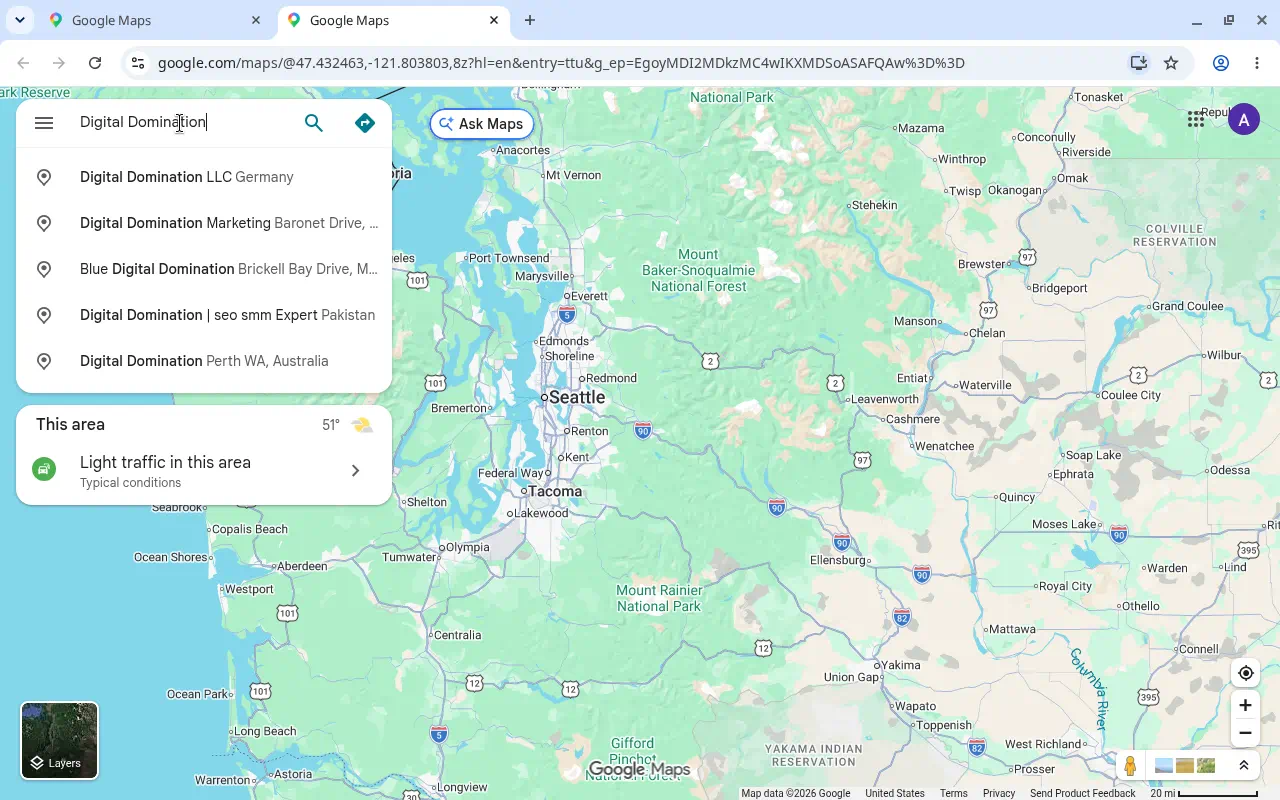
Search your exact business name, not your address
- Type the name exactly as it appears on your Google Business Profile. Add your city if the name is common.
- Click your listing so the business panel opens on the left, showing your name, star rating and reviews.
- If you only see an address panel, you clicked the address, not the business. Go back and select the business.
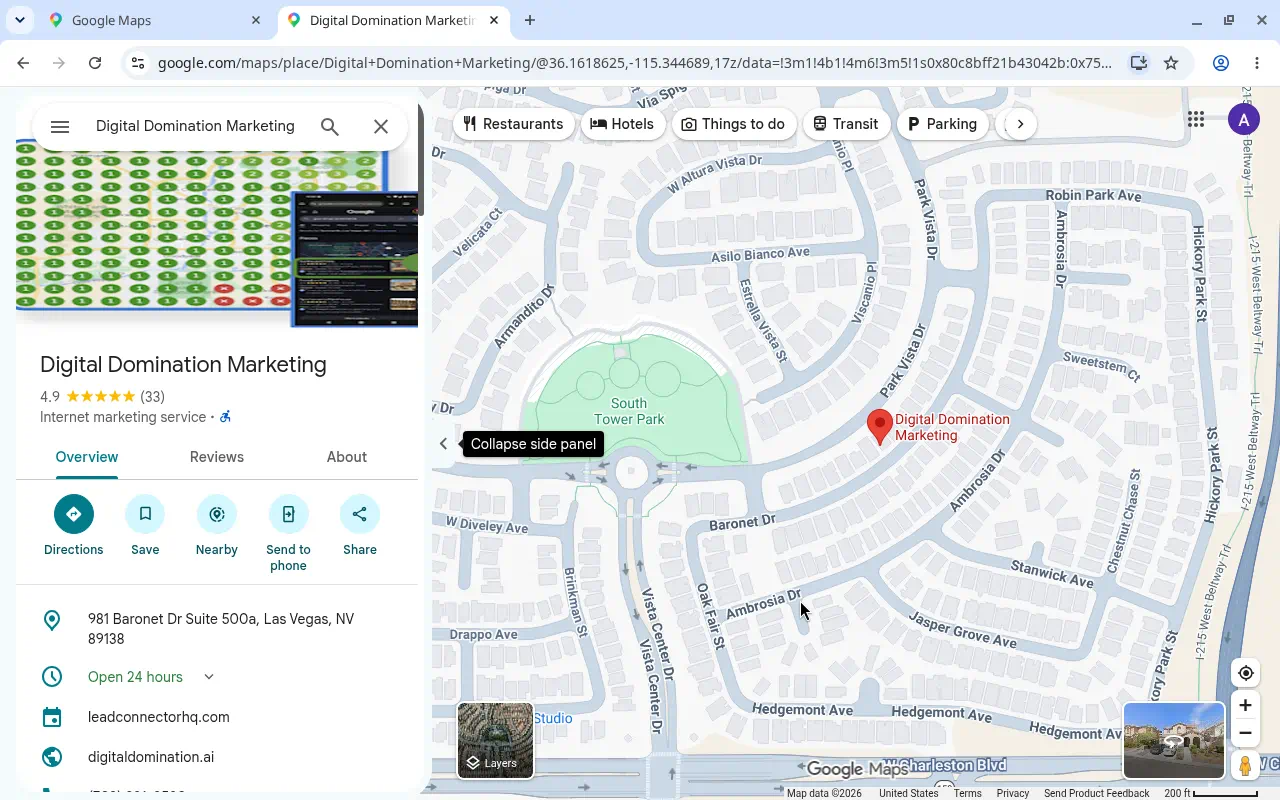
Hit the "Share" button in your business panel
It's in the row of round action buttons under your business name (next to Directions, Save, Nearby, Send to phone).
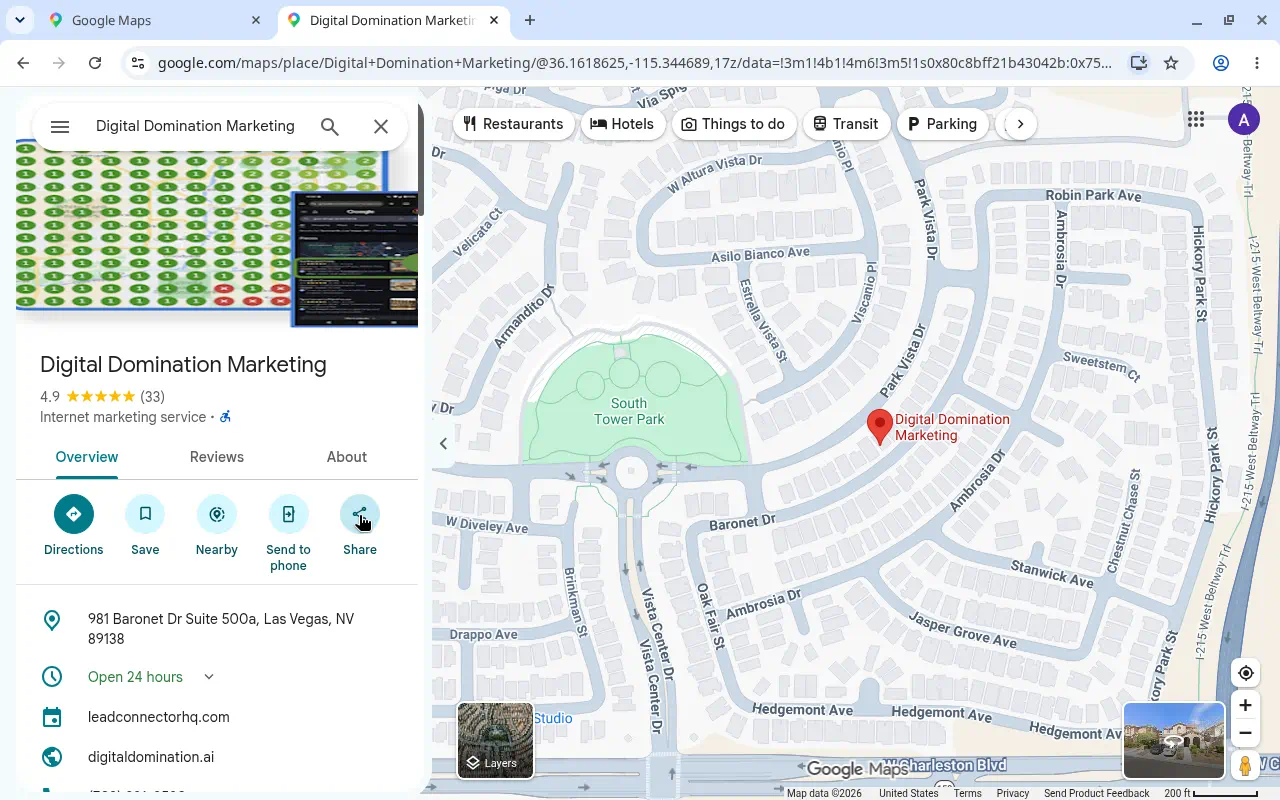
Choose "Embed a map," then "Copy HTML"
- In the Share window, switch to the Embed a map tab.
- Check the preview: the card should show your business name and rating. Zoom/pan if you want.
- Pick a size (Small, Medium, Large or Custom). Medium or Large works for most contact pages.
- Click Copy HTML. You now have an
<iframe>snippet on your clipboard.
Replace the old map completely
- WordPress: add a Custom HTML block (or your page builder's HTML/Code widget) and paste.
- Wix: Add → Embed Code → Embed HTML. Squarespace: Code block. Webflow: Embed element. GoHighLevel: Custom JS/HTML element.
- Delete the old address map. Don't leave both. If your theme has a built-in "map widget" that asks for an address, don't use it; it will usually produce an address embed.
Want it responsive on phones? Wrap it like this:
<div style="position:relative;aspect-ratio:4/3;width:100%">
  <iframe src="PASTE-GOOGLE-SRC-HERE" title="Your Business Name on Google Maps"
    style="position:absolute;inset:0;width:100%;height:100%;border:0"
    loading="lazy" allowfullscreen
    referrerpolicy="no-referrer-when-downgrade"></iframe>
</div>
Re-run the 3 tests
- The map card shows your name + stars + reviews.
- View larger map opens your actual Business Profile.
- The
!2spart of the code is your business name. Or paste it into the checker above.
Alternatives: Place ID & CID
The Share → Embed method above is the easiest and works for most businesses. If you (or your developer) want an embed tied to a permanent ID, use one of these.
Place ID + Maps Embed API
- Find your Place ID with Google's Place ID Finder (search your business name; it starts with
ChIJ). - Create a Google Cloud API key with the Maps Embed API enabled. Google lists the Embed API as free with unlimited usage; restrict the key to your domain.
- Use it in your iframe:
https://www.google.com/maps/embed/v1/place
  ?key=YOUR_API_KEY
  &q=place_id:ChIJxxxxxxxxxxxxxxxxxxxx
CID (your Google Maps customer ID)
Your CID is the number in a link like google.com/maps?cid=1234567890. In your listing's Maps URL, it's the second hex value in !1s0x…:0x…, converted to decimal (the checker above does this for you). Then:
https://maps.google.com/maps?cid=YOUR_CID&output=embed
This currently redirects to a standard embed of your listing, but Google doesn't document it, so it could change. Prefer Share → Embed or the Place ID method for anything long-term.
Where to put your map
Put the map where people (and Google) expect your location details, and always pair it with your NAP: Name, Address, Phone, written exactly as on your Business Profile.
Contact page
The #1 spot. Map + NAP + hours + click-to-call, all in one place.
Footer (sitewide)
A small map with your NAP in the footer puts your location on every page. Use loading="lazy" so it doesn't slow the page down.
Each location page
One page per location, each embedding that location's own Business Profile and showing that location's NAP. Never reuse one map across locations.
NAP must match, character for character
Same business name, same address format (suite included), same phone number as your Business Profile.
Service-area business?
If you hide your address on Google (you work at customers' locations), still embed your business listing the same way; don't embed or publish a home address. Pair it with your business name, phone and the areas you serve.
Bonus for developers: add LocalBusiness schema with "hasMap": "https://www.google.com/maps?cid=YOUR_CID".
Your map embed checklist
Tick them off as you go. Your progress is saved in this browser.
Common questions
Will fixing my map embed get me into the top 3?
On its own, no, and anyone who says otherwise is selling something. It's a foundational fix that helps Google connect your website to your Business Profile. Getting into the top 3 takes the full picture: profile optimization, reviews, relevance and authority. That's what we do.
Do I need a Google API key?
Not for the Share → Embed a map method. That code works as-is. Only the Place ID method (Maps Embed API) needs a key.
My map shows the business name but no stars. Is that OK?
If the card shows your business name and "View larger map" opens your profile, you're pointing at the right listing. Brand-new profiles without reviews won't show a rating yet.
Will an embedded map slow down my website?
Google Maps iframes are fairly heavy. Add loading="lazy" so it only loads when scrolled into view, and avoid stacking several maps on one page. Curious how fast your site is right now? Run our free website speed test.
Your Next Move
Fixing your map embed is step one. If you want to know exactly what's keeping you out of the top 3, and how to get in, let's talk.