
Google Business Profile photo verification: what storefront owners should upload
A new “Submit a business photo” option is appearing for some Google Business Profiles. Here is how to take the right photo before you try it.

What changed and who this affects
Google Business Profile has started showing a new verification option called “Submit a business photo” for some businesses. Search Engine Roundtable covered the change on September 4, 2026, based on screenshots shared by local SEO expert Ben Fisher on LinkedIn, and Search Engine Watch also reported that the option is appearing for some profiles.
This matters most for storefront businesses with a real, public-facing location: shops, clinics, offices, restaurants, showrooms, repair counters and local service companies with visible signage. If your business has a physical location customers can visit, this could become a faster path to verifying or reverifying your Google Business Profile.
The reported requirement is simple but strict: Google wants a photo that shows the business name on a permanent fixture, such as a signboard, and the full storefront in one frame. Google has not yet added this option to its main verification documentation, so treat it as a limited test or early rollout, not something every profile will see today.
Why verification still matters
Verification is the gate that lets you fully manage your business on Google Search and Maps. Without it, you may be limited in what you can edit, respond to, publish or protect. For a local business owner, that can affect calls, direction requests and customer trust.
Google’s local ranking factors are relevance, distance and prominence. Verification does not guarantee rankings by itself, but it helps confirm that Google is dealing with the real business owner or authorized manager. That matters when you are trying to keep your name, address, phone number, hours, category and photos accurate.
A photo-based option could reduce friction for legitimate storefronts, especially compared with waiting for a postcard or preparing a full video verification. The catch is that a weak photo may create more delay than it solves.
What Google appears to want in the photo
Based on Ben Fisher’s LinkedIn screenshot and the reporting from Search Engine Roundtable and Search Engine Watch, the photo should prove two things at once. First, the business name must be visible on a permanent fixture. Second, the full storefront should be visible in the same frame.
Think of this as a “one photo, no guessing” test. A reviewer should be able to look at the image and understand that the business exists at that exact place. A tight crop of a sign is not enough. A wide building photo without the business name is not enough either.
Before you submit, make sure the photo includes these elements:
- ▸Your business name clearly readable on a permanent sign, window lettering, awning or exterior fixture.
- ▸The full storefront, including the entrance customers use.
- ▸Enough surrounding context to show the business is at a real location.
- ▸No temporary banner, paper printout or removable yard sign as the main proof.
- ▸No heavy crop, blur, filter or screenshot.
- ▸A clean daytime image with good lighting.
The exact photo a storefront should take
Stand across the sidewalk, parking lot or street far enough back to capture the whole front of the business. Your goal is not to create a beautiful marketing photo. Your goal is to create evidence that is easy for Google to verify.
Frame the photo so the business name and entrance appear together. If your sign is above the door, this is usually simple. If your sign is on a monument sign near the road and your entrance is far away, take the best single frame you can that shows both. If that is impossible, the new option may not be the right fit for your location.
Use your phone’s normal camera, not a social media app. Do not add text, arrows, circles or effects. Do not submit a collage. Google is asking for a business photo, not a designed proof packet.
Use this shot setup:
- ▸Take the photo during daylight.
- ▸Stand far enough back to show the full storefront.
- ▸Keep the business name readable.
- ▸Include the customer entrance.
- ▸Hold the phone steady and level.
- ▸Avoid cars, trees or people blocking the sign or door.
- ▸Use the current exterior, not an old photo from before a remodel.
- ▸Submit the original photo from your phone if possible.
Five things to check on your profile this week
Even if you do not see the new “Submit a business photo” option yet, you can prepare now. Verification problems often start before the upload, because the real-world location does not match what the profile says.
Check your Google Business Profile and your storefront the same way a reviewer would. The name on your sign, your address format, your phone number and your category should all tell the same story.
This week, check these items:
- ▸Your profile name matches the real business name on your permanent sign.
- ▸Your address matches the address customers see and use.
- ▸Your phone number is current and answered by the business.
- ▸Your primary category matches what customers actually hire or visit you for.
- ▸Your hours match your posted hours and website hours.
Common photo mistakes that can slow you down
The biggest mistake is submitting a photo that proves only part of the story. A close-up of a sign may show the name, but not the storefront. A photo of the building may show the storefront, but not the name. Google appears to be asking for both in one image.
Temporary signage is another risk. If you printed your business name on paper and taped it to the window, that may not look like a permanent fixture. The reported language points to a signboard or similar fixed element, so make your permanent sign the center of the photo.
Avoid these mistakes when taking the verification photo:
- ▸Submitting only a logo close-up.
- ▸Cropping out the entrance.
- ▸Using a photo taken from inside the business.
- ▸Relying on a temporary banner or paper sign.
- ▸Showing an old address or old sign.
- ▸Uploading a dark nighttime image.
- ▸Letting a parked truck block the storefront.
- ▸Using a photo where the business name is too small to read.
What if you are in a suite, office building or shared plaza
Many legitimate local businesses do not have a large street-facing sign. You may be in a suite, medical office, coworking building, industrial park or shared retail plaza. That makes the photo harder, but not impossible.
The key is still the same: prove the business name on a permanent fixture and show the storefront or customer-facing entry. If your business name appears on a permanent directory inside the lobby, but not outside, the new photo option may be harder to satisfy because the reported requirement mentions the full storefront in one frame.
For suite and plaza locations, try to capture the clearest permanent exterior proof available:
- ▸A storefront sign above your suite entrance.
- ▸Permanent window lettering with the suite door visible.
- ▸A building directory if it is fixed and located at the customer entry.
- ▸A plaza view that shows your unit and sign together.
- ▸A suite number that matches the profile address, if visible.
- ▸The entrance customers use when they visit.
What to do about it if the option appears
If Google offers “Submit a business photo” inside your verification flow, do not rush. Take five minutes to inspect your profile, then take the photo. A clean submission the first time is better than trying to fix a failed attempt later.
Use the same business name in the real world and on the profile. If your sign says “Smith Family Dental” but your Google profile says “Smith Family Dental and Emergency Implants Near Me,” clean that up before you submit. Keyword-stuffed names can create trust problems and may violate Google’s naming rules.
Here is the owner-level action plan:
- ▸Open your Google Business Profile and confirm the name, address, phone number, hours and category.
- ▸Walk outside and look at your storefront from a customer’s point of view.
- ▸Take several clear photos, then choose the one that shows the sign and storefront best.
- ▸Do not edit the selected photo except for normal rotation if needed.
- ▸Submit only the clearest photo that matches the request.
- ▸Save a copy of the photo in case your team needs it again.
- ▸If the option is not available, follow the verification method Google gives you.
What not to change during verification
Verification is not the best time to make a pile of unrelated edits. If you change your name, address, category, website, phone number and hours all at once, you may create extra review friction. Keep the profile stable while Google is trying to confirm the business.
That does not mean you should leave incorrect information in place. Fix obvious mismatches before submitting the photo, especially if the sign, address or phone number is wrong. After that, avoid unnecessary changes until verification is complete.
During the verification process, avoid these changes unless they are truly needed:
- ▸Changing the business name for marketing reasons.
- ▸Adding keywords that are not on your real-world signage.
- ▸Switching the primary category repeatedly.
- ▸Changing the address format back and forth.
- ▸Replacing the phone number with a tracking number before verification is done.
- ▸Uploading many unrelated photos at the same time.
How this fits with Google’s broader verification push
Google has used several verification methods over time, including postcards, phone, email and video, depending on the business and situation. A photo option would fit the same basic goal: confirm that the business is real, located where it says it is and eligible to appear on Maps.
Search Engine Watch described the new photo method as a new verification option, while Search Engine Roundtable noted that Google has not yet added it to the main Google Business Profile verification help documentation. That gap is important. Until Google documents it broadly, business owners should treat the option as limited and follow the exact instructions shown inside their own profile.
If you do not see “Submit a business photo,” that does not mean anything is wrong with your listing. Google may be testing by business type, location, account, verification status or other signals it has not publicly explained.
Why a clean storefront still affects local trust
This update is a reminder that your physical location and your online profile are tied together. Google is not only reading your website and business category. It is also checking whether the real-world business matches the listing customers see on Search and Maps.
For a local owner, this is practical. Your sign, door, suite number, posted hours and website should all agree. If customers are confused when they arrive, Google may be confused too.
Use this moment to tighten the basics that support trust:
- ▸Make sure your permanent sign uses your real business name.
- ▸Keep old signs from previous tenants out of your storefront photos.
- ▸Post accurate hours where customers can see them.
- ▸Use the same phone number on your profile and website.
- ▸Make sure your website contact page matches your Google profile.
- ▸Replace outdated exterior photos after a move or remodel.
The local SEO takeaway
The new “Submit a business photo” option could be good news for real storefront businesses, but only if owners submit the right evidence. The winning photo is simple: permanent business name, full storefront, customer entrance and no confusion.
Do not wait until you are forced into reverification to clean this up. Walk outside this week, take the photo and save it. Then compare your real-world signage with your Google Business Profile. If the two do not match, fix the mismatch before it becomes a verification problem.
At Digital Domination, we watch these Google Business Profile changes because small verification issues can turn into lost local visibility. We are a Las Vegas local SEO agency serving local service businesses nationally. If you want to see how your business appears across your market, get the free GeoGrid scan at digitaldomination.ai/scan/.
Keep reading
Related guides
- ▸How Many 5 Star Reviews Cancel One Star
- ▸How much does Google Maps SEO cost in 2026?
- ▸How much should a contractor spend on marketing?
Put it into action
Frequently Asked Questions
What is the new Google Business Profile photo verification option?
It is a reported verification option called “Submit a business photo” that has started appearing for some Google Business Profiles. Ben Fisher shared screenshots on LinkedIn, and Search Engine Roundtable and Search Engine Watch covered the change. Google has not yet added it to its main verification documentation, so it should be treated as a limited test or early rollout.
What photo should I upload for GBP photo verification?
Upload a clear exterior photo that shows your permanent business name sign and the full storefront in one frame. Include the customer entrance if possible. Do not use a close-up sign photo, a temporary banner, a collage or a heavily cropped image.
Can I use a temporary sign for Google Business Profile verification?
You should not rely on a temporary sign if Google asks for a business photo. The reported requirement is a business name on a permanent fixture, such as a signboard, plus the full storefront. A paper sign, removable banner or yard sign may create doubt and slow verification.
Why do I not see the “Submit a business photo” option?
Not every profile appears to have this option. Since Google has not broadly documented it, the feature may be limited by account, business type, location or verification situation. If you do not see it, use the verification method Google shows in your profile.
Will photo verification make my business rank higher on Google Maps?
Verification by itself does not guarantee higher rankings. Google’s local ranking factors are relevance, distance and prominence. Verification helps you manage and protect your profile, which supports the basics needed for stronger local visibility.
What if my business is inside an office building?
Try to show the most permanent proof available, such as exterior suite signage, window lettering or a fixed building directory near the customer entrance. The challenge is proving both the business name and the real customer-facing location. If you cannot capture that in one photo, follow Google’s instructions and be ready for another verification method.
Should I change my Google Business Profile before submitting the photo?
Fix clear errors before you submit, especially your business name, address, phone number and hours. After that, avoid making many changes during verification. Too many edits at once can create confusion and possible delays.
Can I submit an old storefront photo for verification?
Use a current photo. An old image may show outdated signage, an old address or a storefront that no longer matches what customers see. Take a fresh daytime photo from outside the business before submitting.
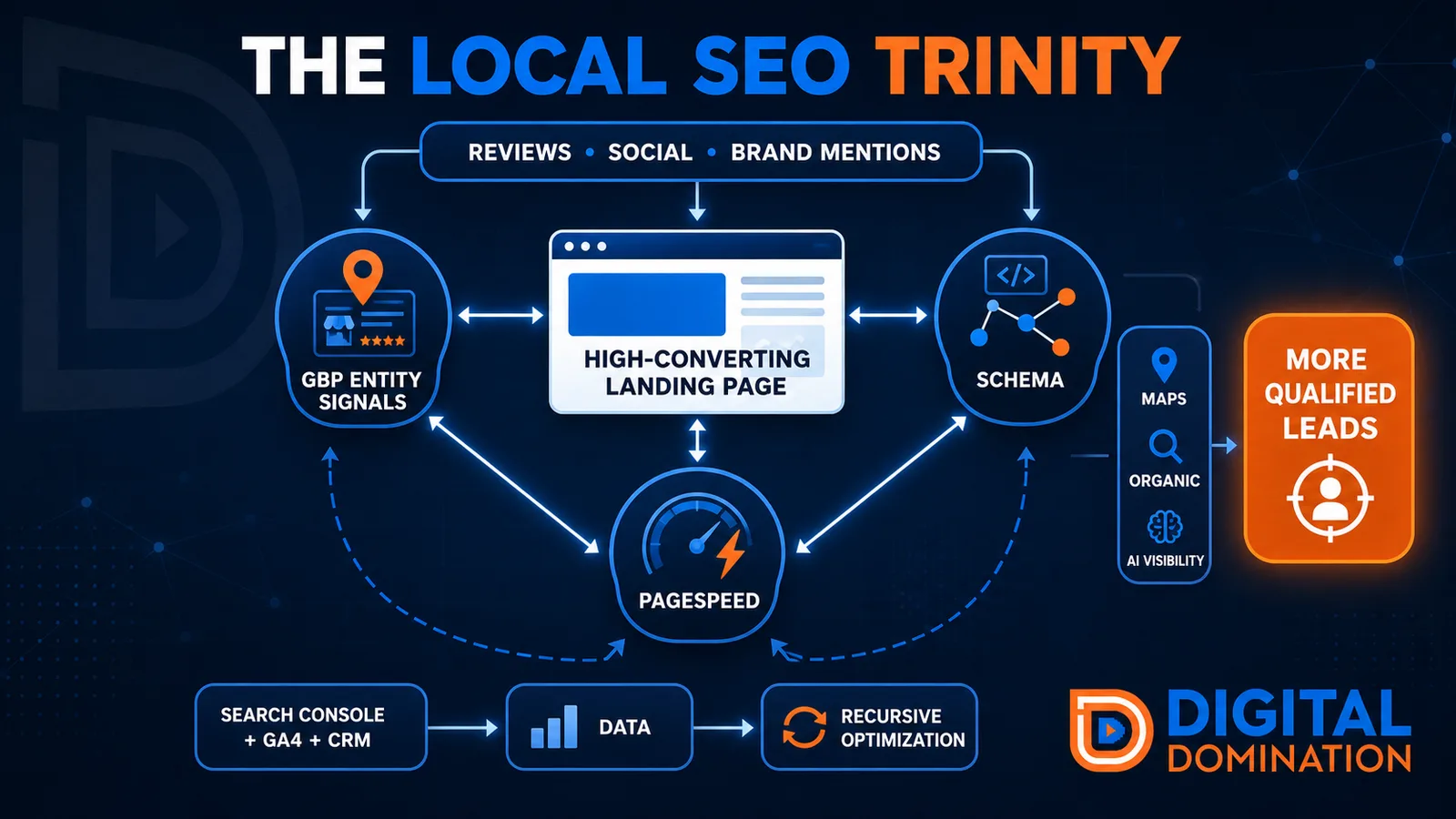
The Local SEO Trinity
Think of a three-legged stool. Your Google profile, your website, and your reviews all have to hold you up. If one leg is short, the whole thing wobbles.
GBP entity signals
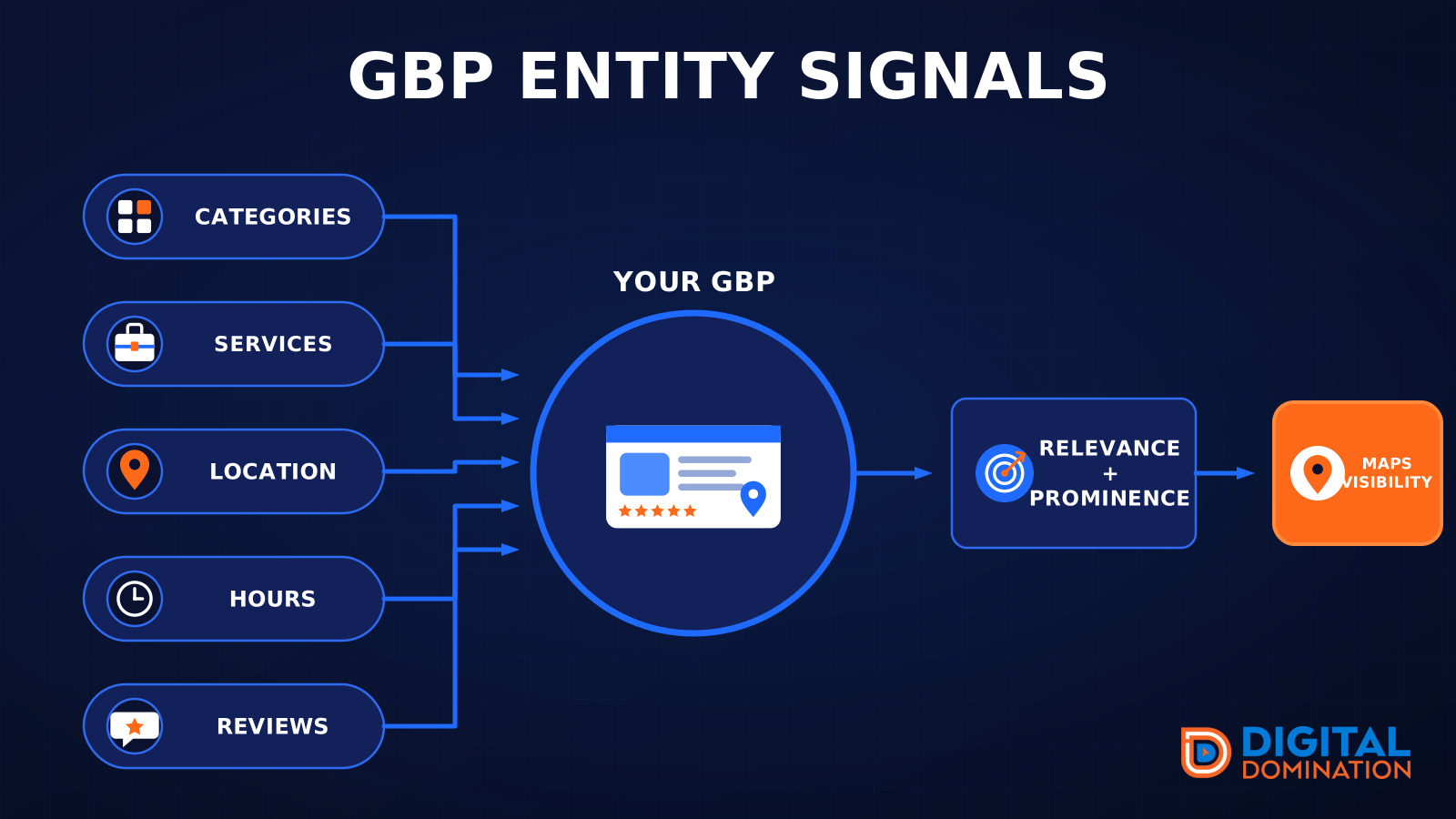
This leg is your Google Business Profile. GBP means Google Business Profile. It covers your categories, your services, your location, your hours, and your reviews. Google uses those facts to decide who to show.
Your Google profile is your storefront sign. If the sign is missing, or it names the wrong shop, people drive past.
PageSpeed to conversion
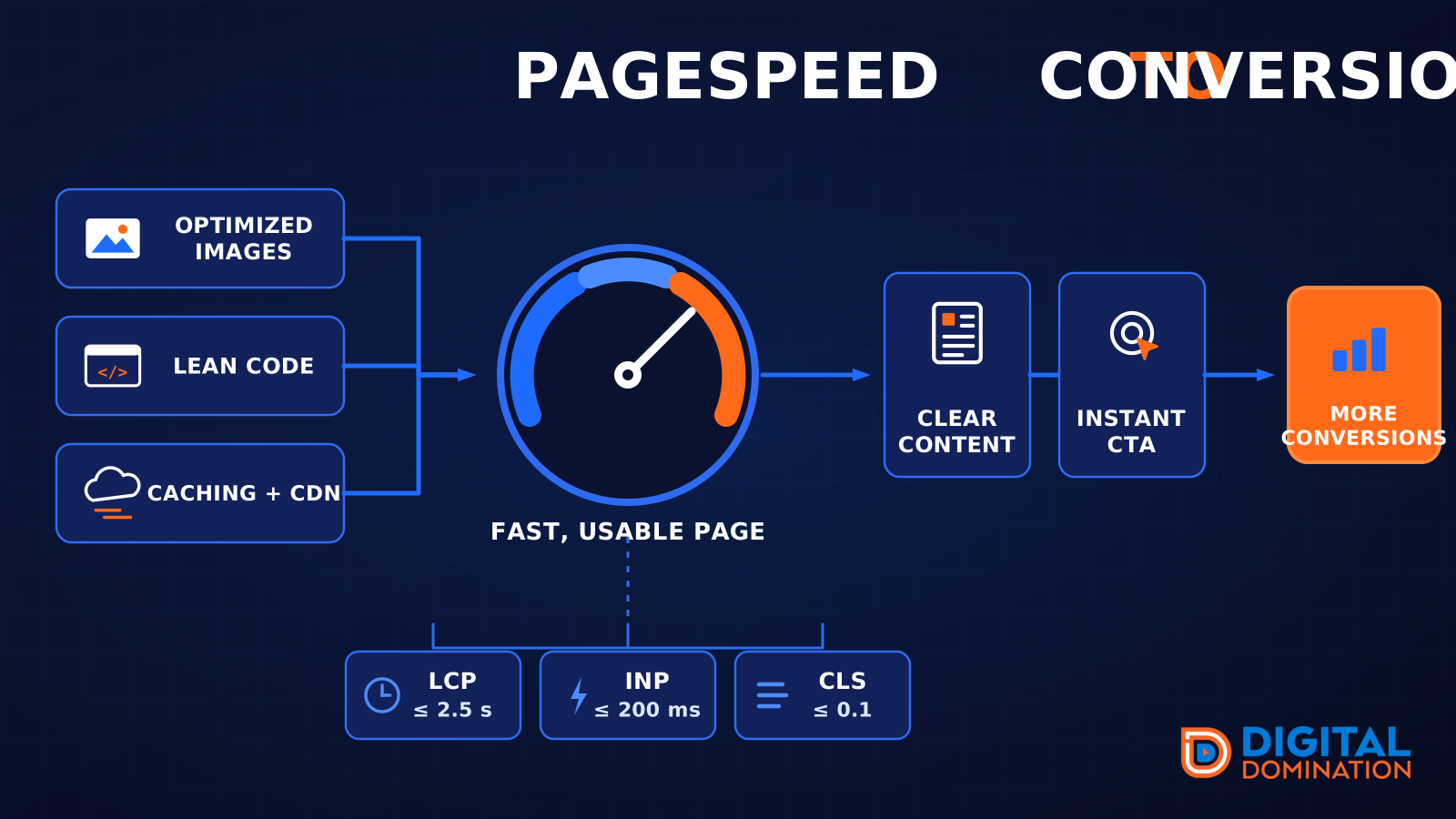
This leg is your website, above all on a phone. Small images, lean code, and caching make a page fast. A fast, clear page is what turns a visit into a call. Phone speed is one of the 12 Trinity checks because a slow page loses the call before anyone sees your offer.
Your website is the showroom. If the door sticks, people leave before they look around.
The review velocity flywheel
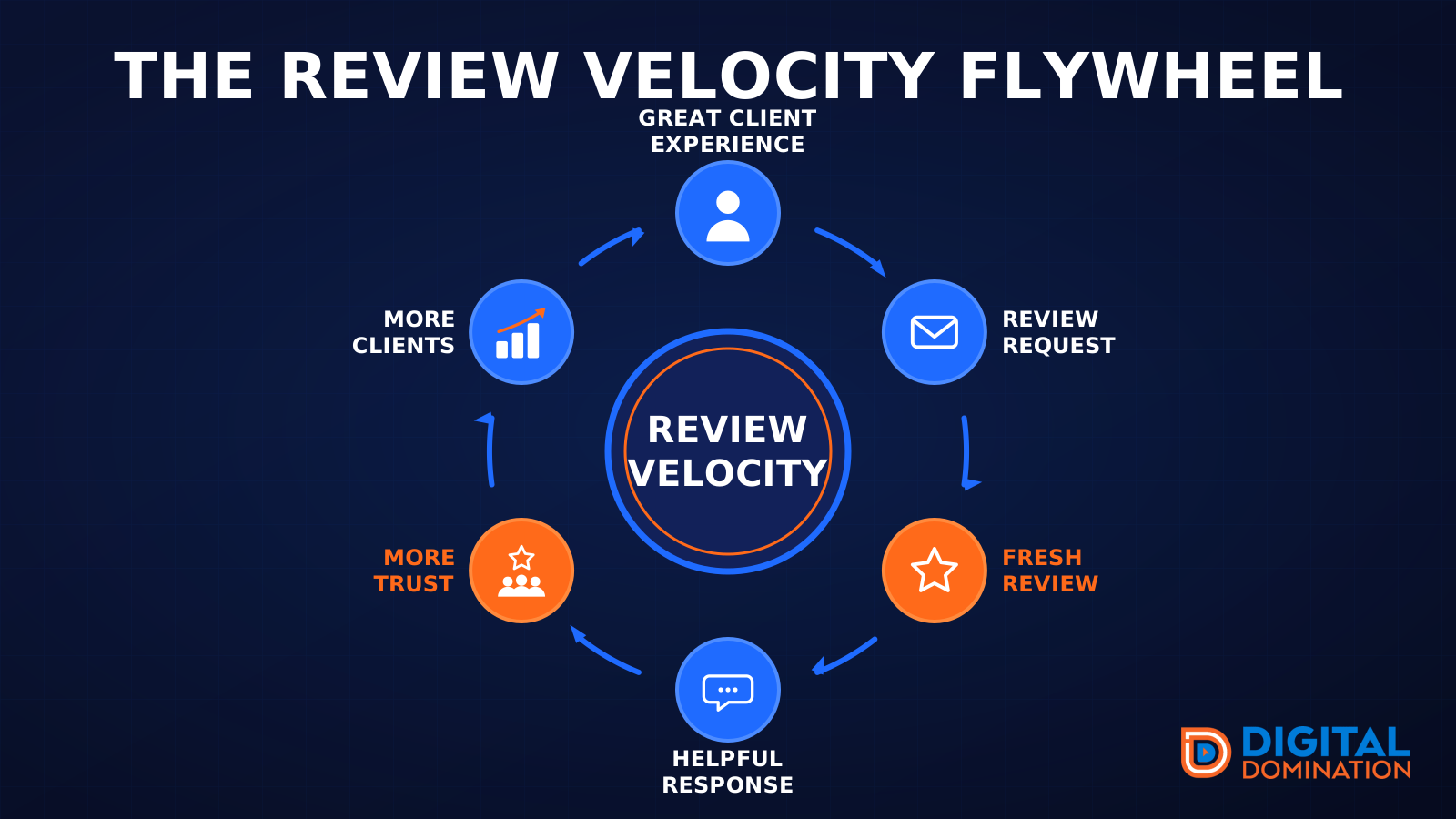
This leg is reviews and reputation. A good visit leads to a review request, then a fresh review, then a helpful reply, then more trust, then more customers. When the scan can find your Google listing, it shows your rating, your recent reviews, and how many you answered.
Reviews are word of mouth. One kind word helps. A steady stream of real reviews, and a reply from you, helps more.
How this turns into revenue
Being found in more searches leads to more calls. More calls lead to more booked jobs. More booked jobs lead to more revenue.
Example numbers, not a real business: 40 calls from search in a month, a 25 percent close rate, and a $400 average job. That is 10 booked jobs. That is $4,000. The math is the lesson. It is not a promise.
The full page has a box where you can type your own average job value and close rate.
One real story, from our car dealership case study: Medina Auto Group went from invisible on Google Maps to dominating every high-intent search across their market. The turnaround spanned all four of their rooftops at once. The same page says the team eliminated 89 unfair one-star reviews that had been dragging the dealership's reputation down and keeping it out of the Map Pack. It also says: “Results described here are exceptional and non-typical. Outcomes vary based on market conditions, competition, and implementation. No guarantees are made regarding earnings, rankings, or conversions.”
Free strategy call
More booked jobs start with a clear plan
Book a free strategy call. We look at your Google profile, your website, and your reviews, and we tell you what to fix first.
Free. You pick the time. A real person shows up.